


Batch Image Crop
Split a single image holding several pictures into separate files. Every picture inside is found automatically, cut on its exact edge and saved in the format it came in.
Why Use Our Image Splitter?
Finds the Pictures for You
Point the tool at a sheet holding several photos and it works out where each one begins and ends on its own. White, coloured and transparent backgrounds all work, and so do grids, not just rows.
Cuts on the Exact Edge
Pasted pictures blend into their background over a pixel or two. Those blended lines are measured and removed, so you get the picture itself with no pale halo and nothing shaved off the artwork.
Keeps Your File Format
A PNG comes back as a PNG and a JPG as a JPG, named after the file it came from. PNG crops are copied pixel for pixel, so nothing is re-compressed or altered on the way out.
Your Images Never Leave
There is no upload. Every image is opened, measured and cut inside your own browser, which also means you can run a large batch without waiting on a server.
Batch Image Crop
Split a sheet of stacked product shots into separate image files
Drop your image sheets here
Each sheet is scanned for the separate pictures inside it
PNG, JPG, WebP, AVIF, BMP and GIF. Everything is processed in your browser.
No images loaded yet. Add a sheet to see the panels it contains.
From One Image to Many
Four steps from a combined sheet to a folder of separate pictures
Add Your Sheets
Drop in one image or a whole batch. Each one is scanned as it arrives and the pictures inside are outlined for you.
Check the Boxes
Every detected picture is shown as a box on the preview. Drag, resize, add or delete any of them if you want a different cut.
Tune If You Need To
Backgrounds that sit close to the artwork can be handled by nudging the sensitivity or the minimum gap between pictures.
Download
Save one sheet at a time, or take the whole batch as a single ZIP with every crop named after its source file.
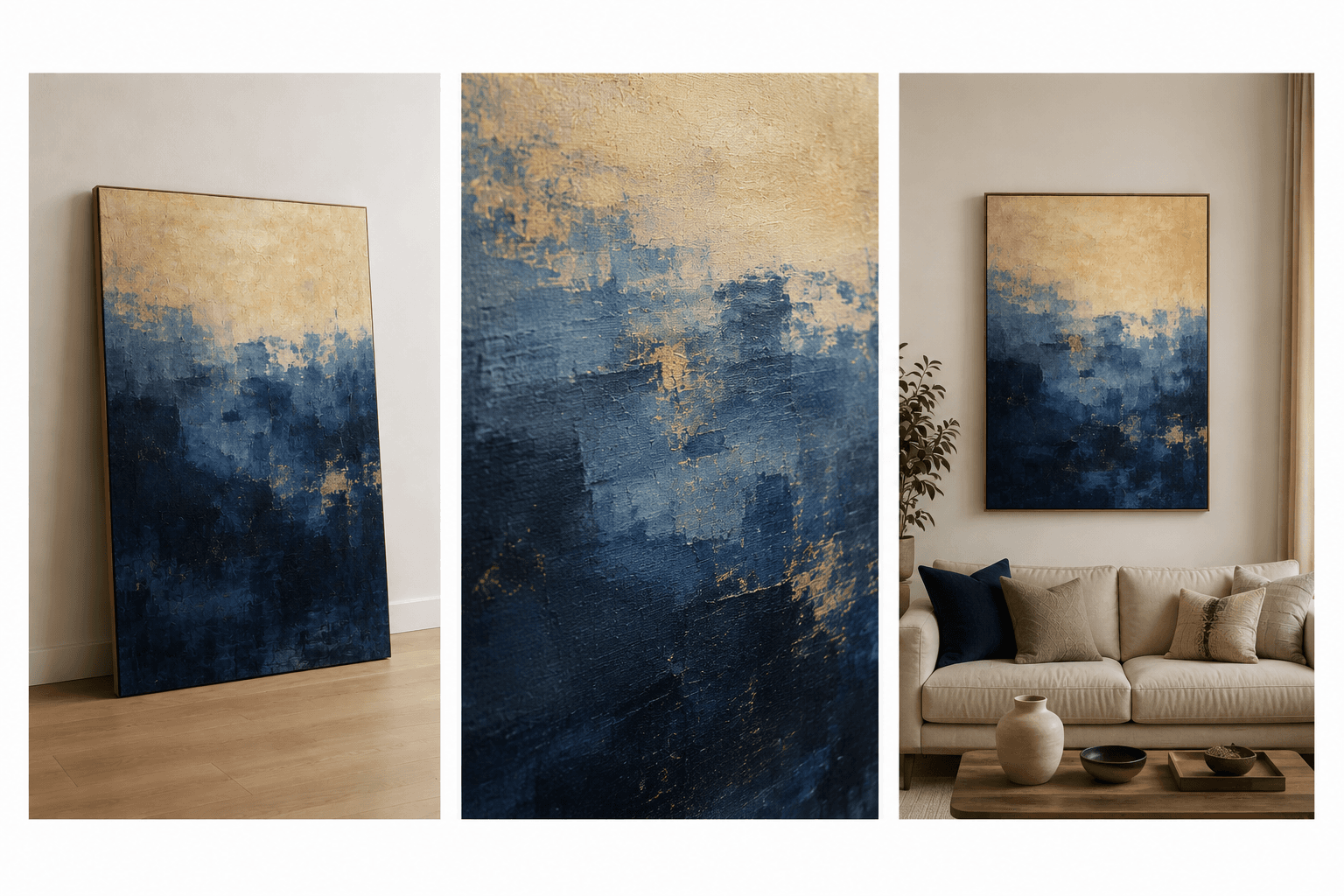
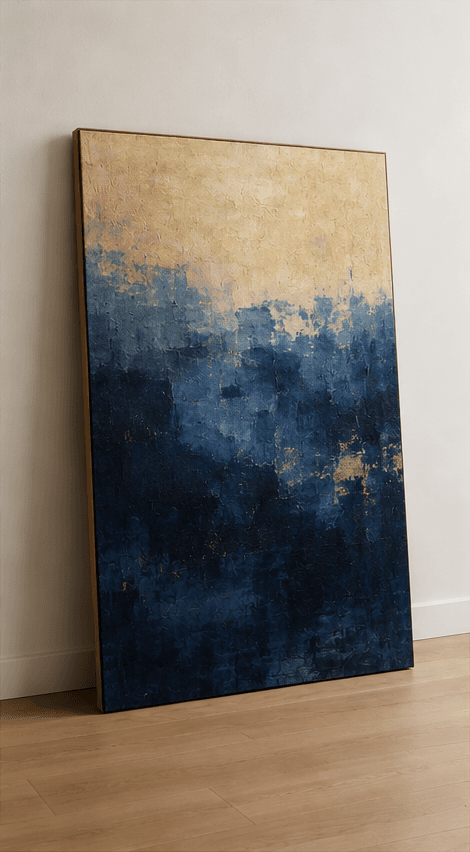 1
1470 × 852
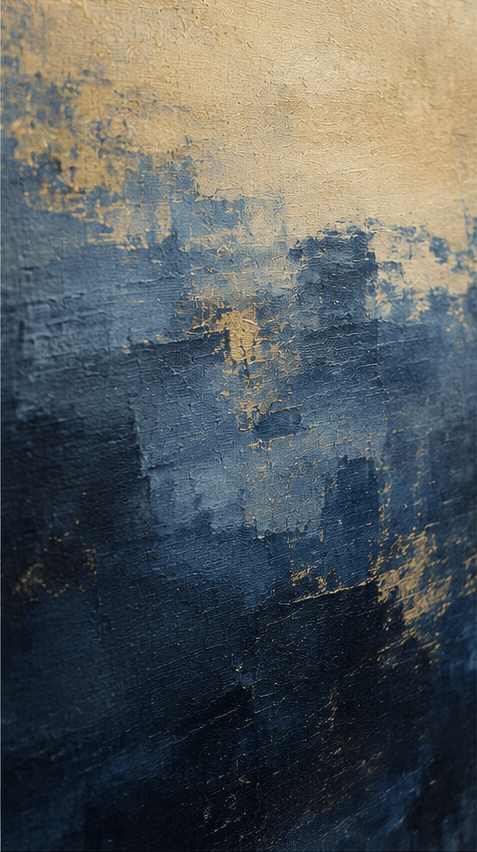 2
2477 × 852
 3
3474 × 852
These three files are the tool’s real output for the sheet on the left, at its default settings and with nothing adjusted by hand. Each one is cut on the picture’s own edge rather than a fixed grid, which is why their widths differ slightly. The names follow the original file — painting-store-indigo-field-abstract-gallery-1.png and so on.
Questions About Splitting Images
What the tool can do, and where it needs a hand
How many pictures can one sheet hold?
As many as will fit. The tool splits on empty rows and columns and keeps going, so a strip of three, a four by four grid and an uneven mosaic are all handled the same way.
What if two pictures are detected as one?
That happens when the inner edges of two pictures are the same colour as the background behind them, leaving no visible gap. The tool looks for a box that measures a whole multiple of the others and divides it back up. If it still looks wrong, drag the boxes yourself or lower the minimum gap.
Will cropping reduce the quality?
Not for lossless formats. A PNG crop is a straight copy of the original pixels. JPG and WebP have to be encoded again because that is how those formats work, so a quality control is provided and set high by default.
Does it work on transparent images?
Yes, and that is the easiest case. When the sheet has a transparent background the alpha channel marks exactly where each picture sits, so the boundaries are found precisely.
Are my images uploaded anywhere?
No. Everything happens inside your browser using the canvas API. No image data is sent to any server, which is why the tool keeps working even if you go offline after loading the page.